Raspberry Pi 4 CAN Bus Examples
Complete Raspberry Pi code examples for UIROBOT products — CAN bus control via UI-MCP2515. Includes wiring, setup, and code for single and multi-motor control.
This page provides complete **Raspberry Pi 4** example projects for controlling UIROBOT motors via CAN bus using the **UI-MCP2515** SPI-to-CAN module.
---
## Quick Selection
| Connection Method | Compatible Products | Docs |
|-----------------|-------------------|------|
| **UI-MCP2515 → CAN Bus** | UIM342 (single motor) | [AN260320] |
| **UI-MCP2515 → CAN Bus** | UIM342 (change Node ID) | [AN260321] |
| **UI-MCP2515 → CAN Bus** | UIM342 (multiple motors) | [AN260322] |
---
## Background
The UIM342 series all-in-one motors integrate a stepper motor, encoder position feedback, and a UIM342 drive-and-control controller. The UI-MCP2515 is a CAN module based on the MCP2515 controller and TJA1050 transceiver. By combining a Raspberry Pi, the UI-MCP2515 module, and UIM342 motor drivers, users can efficiently create a complete and reliable motion control system on a Linux platform.
---
## Required Hardware
| Item | Qty | Description |
|------|:---:|-------------|
| Raspberry Pi 4 | 1 | Main controller (Model B recommended) |
| Micro SD Card | 1 | 16GB+ for OS and code |
| UI-MCP2515 | 1 | SPI to CAN module |
| UIM342 Series Motor | 1+ | CAN bus smart motor |
| 24V DC Power Supply | 1 | For motor power |
| USB-C Power Supply | 1 | 5V/3A for Raspberry Pi |
| Ethernet Cable | 1 | For network access (optional) |
---
## Wiring
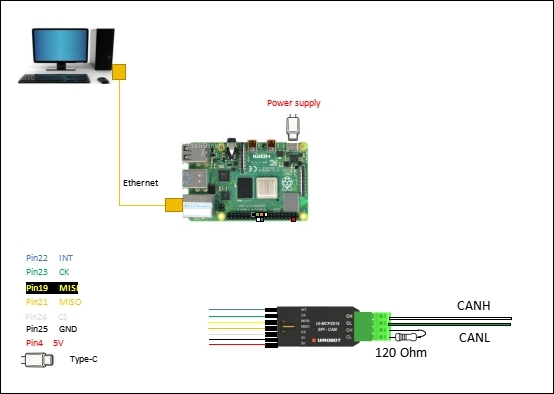
### GPIO Pin Connections (Raspberry Pi ↔ UI-MCP2515)
### GPIO Pin Reference
| Raspberry Pi | UI-MCP2515 |
|-------------|-------------|
| Pin 4 (5V) | VCC |
| Pin 6 (GND) | GND |
| Pin 19 (MOSI) | SI |
| Pin 21 (MISO) | SO |
| Pin 23 (SCLK) | SCK |
| Pin 24 (CE0) | CS |
| Pin 22 (GPIO25) | INT |
---
## Sample Code
### Download Links
| Application Note | Description | Download |
|-----------------|-------------|----------|
| AN260320 | UIM342 basic CAN control | [Download](https://www.uirobot.com/uploads/files/RaspberryPi_C_Mcp2515_UIM342_AN260320.zip) |
| AN260321 | UIM342 change Node ID | [Download](https://www.uirobot.com/uploads/files/RaspberryPi_C_Mcp2515_UIM342_ChangeNodeID_AN260321.zip) |
| AN260322 | UIM342 multi-motor control | [Download](https://www.uirobot.com/uploads/files/RaspberryPi_C_Mcp2515_UIM342_Multiple_AN260322.zip) |
---
## Step-by-Step Setup
### Step 1 — Download Raspberry Pi OS
1. Visit the official Raspberry Pi website for Raspberry Pi 4: [raspberrypi.com/software](https://www.raspberrypi.com/software/)
2. Download the **Raspberry Pi Imager** tool
3. Run the imager and select:
- **Raspberry Pi 4** as the device
- **Raspberry Pi OS (32-bit)** (for Pi 4) as the operating system
- Your SD card as the storage
4. Configure custom settings:
- Set hostname (e.g., `raspberrypi`)
- Enable SSH
- Set username and password
- Configure Wi-Fi (if needed)
5. Click **Write** to flash the SD card
### Step 2 — Download Sample Code
1. Visit the UIROBOT website: [uirobot.com](https://uirobot.com)
2. Navigate to **Support → Code Example**
3. Find the Raspberry Pi section and download the appropriate sample code
4. Extract the downloaded ZIP file
### Step 3 — Configure Raspberry Pi Environment
1. Insert the SD card into the Raspberry Pi and power it on
2. Connect via SSH or monitor
```bash
# Enable SPI interface
sudo raspi-config
# Navigate to: Interface Options → SPI → Enable
# Install required packages
sudo apt update
sudo apt install -y wiringpi can-utils
# Verify SPI is enabled
ls /dev/spi*
# Should show: /dev/spi0.0 /dev/spi0.1
```
### Step 4 — Install MCP2515 Library
```bash
# Download and install MCP2515 library for Raspberry Pi
wget https://github.com/YourRepo/MCP2515/archive/master.zip
unzip master.zip
cd MCP2515-master
make
sudo make install
```
### Step 5 — Network Configuration
1. Connect the Raspberry Pi to your local network via Ethernet
2. Find the Raspberry Pi's IP address:
```bash
ip addr show eth0 | grep inet
```
3. From your PC, transfer the sample code to the Raspberry Pi:
```bash
# Using SCP (replace IP with your Pi's address)
scp -r UIM342_Code/ pi@192.168.1.xxx:/home/pi/
```
### Step 6 — Compile and Run
```bash
# SSH into the Raspberry Pi
ssh pi@192.168.1.xxx
# Navigate to the code directory
cd ~/UIM342_Code
# Compile the code
gcc -o uim342_control main.c -lwiringPi -lmcp2515
# Run the program
./uim342_control
```
### Step 7 — Verify Results
- The motor should begin moving according to the programmed commands
- Monitor the serial output for confirmation messages
- Use `candump` for additional CAN bus debugging:
```bash
# Install CAN utilities if not already installed
sudo apt install can-utils
# Bring up CAN interface
sudo ip link set can0 up type can bitrate 500000
# Monitor CAN traffic
candump can0
```
---
## Download All Sample Codes
| Application Note | Description | Download Link |
|-----------------|-------------|---------------|
| AN260320 | UIM342 basic CAN control | [Download ZIP](https://www.uirobot.com/uploads/files/RaspberryPi_C_Mcp2515_UIM342_AN260320.zip) |
| AN260321 | UIM342 change Node ID | [Download ZIP](https://www.uirobot.com/uploads/files/RaspberryPi_C_Mcp2515_UIM342_ChangeNodeID_AN260321.zip) |
| AN260322 | UIM342 multi-motor control | [Download ZIP](https://www.uirobot.com/uploads/files/RaspberryPi_C_Mcp2515_UIM342_Multiple_AN260322.zip) |
---
## Related Documents
> 💡 **Raspberry Pi 5 users**: A separate [Raspberry Pi 5 CAN Bus Examples](/docs/raspberry-pi-5-examples) page is available with Pi 5-specific instructions.
- [UIROBOT Code Examples Overview](/docs/code-examples-overview)
- [Arduino CAN Bus Examples](/docs/arduino-examples)
- [UIM342 CAN Bus Motor Controller](/docs/uim342)
- [UI-MCP2515 SPI to CAN Module](/docs/UI-MCP2515)
- [Quick Start Guide](/docs/quick-start)
---
*Last updated: 2026-06-25 | Based on Application Notes AN260320-AN260322*